How to add a FACEIT ELO overlay to OBS
Find your FACEIT player, choose an overlay, and add live CS2 stats to OBS Studio with a Browser Source.
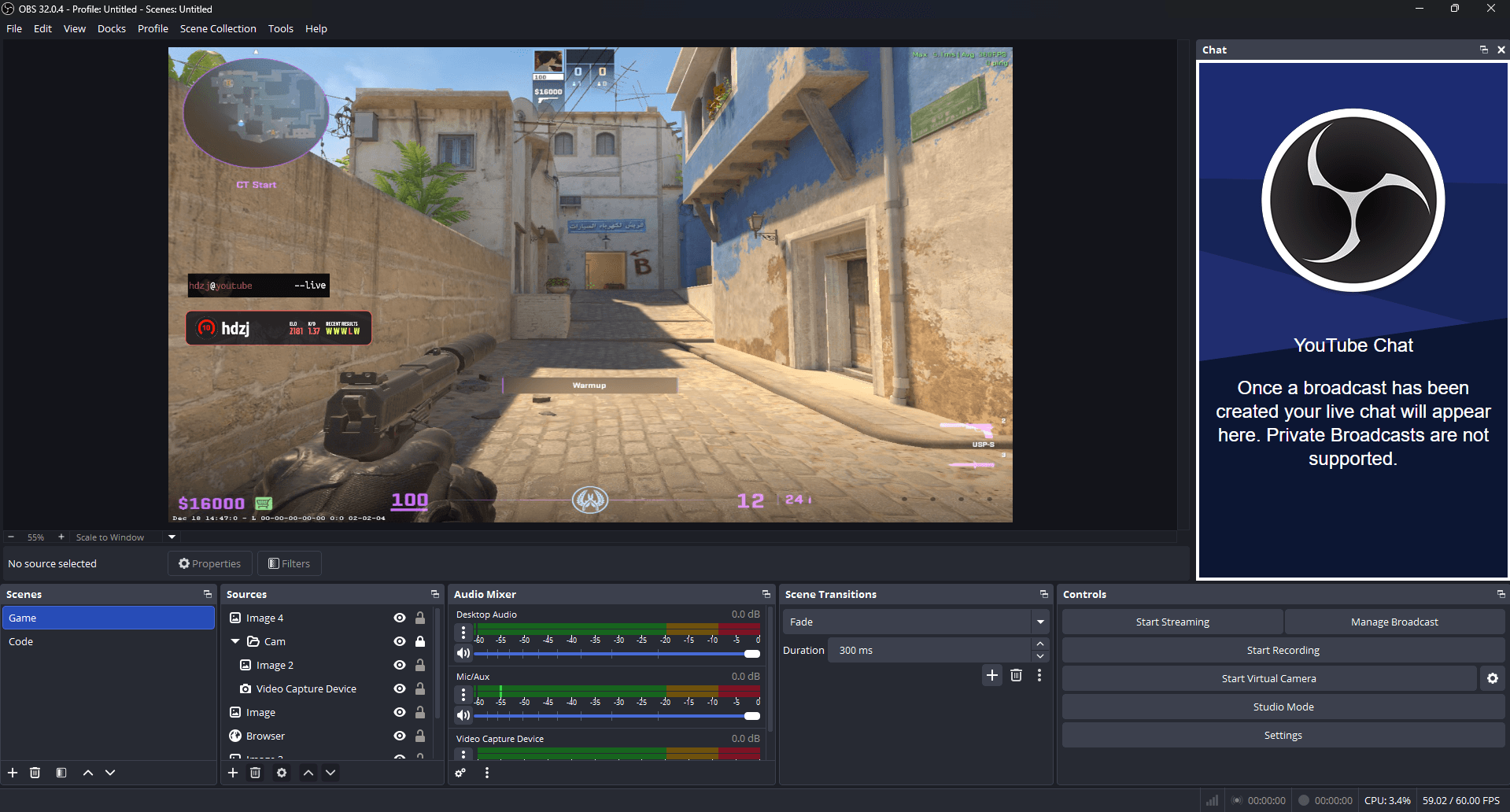
Choose your player and template
Open the builder and enter your FACEIT nickname. Check the player and stats in the preview, then choose a free template. Templates marked Pro require active Pro access for that player.
Adjust the available fields and appearance, then select Copy URL. Keep the complete link: its query parameters save your template and settings.
Build your overlayAdd the overlay in OBS Studio
- Open the scene you use for CS2. In Sources, select +, choose Browser, and give the source a name.
- Leave Local file off. Paste the copied overlay link into URL.
- Set Width and Height large enough for the whole template. Start at 800 × 600 if you are unsure, then reduce the empty area or increase the dimensions if the overlay is clipped.
- Clear the Custom CSS box, then select OK. FaceitOBS supplies its own overlay styling.
- Move the Browser source above your game capture in the Sources list. Drag it into position and resize it in the scene preview, then lock the source.
The browser dimensions control how much of the page can render; resizing the source in the scene controls how large it looks on stream. See the OBS Browser Source reference for these settings.
Check it before going live
Make a short local recording and confirm the overlay is readable and does not cover important game information. It checks for ELO changes while visible; FACEIT results may arrive after the match ends.
If nothing appears, open the copied link in a normal browser first. Confirm the nickname, check any Pro access message, and make sure the source is visible above game capture. If the overlay is cut off, increase its Browser Source dimensions. After changing settings in the builder, copy the new URL into the source properties.
For a source that stops updating, use Refresh cache of current page in its OBS properties. A hidden source can pause updates; check it again in the active scene.